Home / Help Center
Official Knowledge Base • AGONY Hub v1.0.0

How can we help you
with AGONY Hub?

Verified tutorials, exact settings guides, and diagnostic troubleshooting for the official v1.0.0 release. Grounded in actual source code and real application workflows.

/
Showing all 27 verified user guides
🚀
Getting Started
Downloading, installer options, initial setup wizard, account sign-in, and Free vs Premium.
4 Guides • Jump to section →
🎮
Game Library
Importing Steam, Epic, and Xbox titles, standalone games, launch modes, and library health.
4 Guides • Jump to section →
🎨
Themes & Appearance
Auto Theme Engine, 7 preset accents, custom picker, Atmosphere mode, and animations.
4 Guides • Jump to section →
🎵
Spotify & Audio
Native Windows SMTC & WASAPI audio controls (zero keys needed) vs optional custom connection.
2 Guides • Jump to section →
✨
WAND Integration
Configuring modded launchers, locating WAND / WeMod executables, and exporting theme scripts.
1 Guide • Jump to section →
🔄
Updates & Install
Automatic updater, active session guard, version verification, and safe recovery steps.
2 Guides • Jump to section →
🔧
Troubleshooting
Diagnostic steps for missing games, launch failures, path repair, themes, and Spotify issues.
7 Guides • Jump to section →
🔒
Security & API Keys
SteamGridDB configuration, Windows DPAPI encryption, offline leases, and safe log collection.
3 Guides • Jump to section →

🚀 Getting Started

Getting Started / Downloading & Installing

Downloading and Installing AGONY Hub v1.0.0

AGONY Hub v1.0.0 is distributed as an official, self-contained Windows 64-bit installer executable (AGONY Hub Setup 1.0.0.exe, exactly 93,818,896 bytes).

System Requirements:

  • Operating System: Windows 10 (64-bit, Build 19041+) or Windows 11 (64-bit).
  • Hardware: 64-bit multi-core CPU, 4 GB RAM, and at least 500 MB free disk space.
  • Privileges: Standard user account. AGONY Hub installs into your Windows user directory without requiring Administrator UAC elevation.

Step-by-Step Installation:

  1. Download Installer: Visit the official Download page or click Download Now. Verify the file size is 89.47 MB (93,818,896 bytes).
  2. Run Setup: Double-click AGONY Hub Setup 1.0.0.exe.
  3. Review License: Read and accept the AGONY Hub End-User Commercial License.
  4. Installation Location: Setup installs automatically to:
    %LOCALAPPDATA%\Programs\AGONY Hub
  5. Shortcuts & Finish: Choose whether to create Desktop and Start Menu shortcuts, click Install, and finish setup.
AGONY Hub Setup 1.0.0 • NSIS Installation Wizard Windows 64-bit
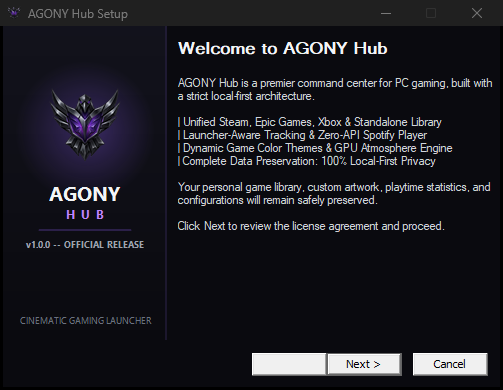
AGONY Hub v1.0.0 Installation Wizard Welcome Screen
Figure 1.1: Official AGONY Hub v1.0.0 installation wizard welcome screen.
Integrity Verification: In Windows PowerShell, verify the SHA-256 hash before running:
Get-FileHash "AGONY Hub Setup 1.0.0.exe" -Algorithm SHA256
Expected Hash: d028f2c30e72cc18fdc755ad326df294bffdfedb9531851054e8f849df169ce1
Getting Started / First Launch & Navigation

First Launch, Onboarding & Navigating the Application

When AGONY Hub launches for the first time with an unpopulated library, the First-Run Platform Discovery modal (#first-run-modal) automatically appears.

1. First-Run Discovery Setup:

AGONY Hub checks standard system locations for installed platforms on your PC and presents available options:

  • Steam Platform: Discovers Steam games through registry detection and manifest scans.
  • Epic Games: Reads official Epic manifest items from ProgramData.
  • Xbox / Windows Apps: Discovers installed Microsoft Store / UWP gaming packages.

Click Import Selected Platforms (#first-run-import-btn) to scan your libraries automatically, or click Skip (#first-run-skip-btn) to start with an empty library.

2. Topbar Navigation Tabs:

The frameless minimal-luxury titlebar and header contain 5 main navigation views:

  • Library (#nav-library): Grid, Compact, or List view of all orchestrated games.
  • Favorites (#nav-favorites): Quick-filter showing only games you have starred.
  • Dashboard (#nav-dashboard): Visual gaming analytics, total playtime counter, and platform breakdown.
  • WAND (#wand-open): Opens the WAND Control Center dialog (revealed when WAND is enabled in Settings).
  • Settings (#nav-settings): Preferences, themes, Spotify, updater, and system configuration.

3. Language & RTL Switching:

Click the العربية / English toggle (#topbar-lang-toggle) in the topbar. AGONY Hub instantly toggles between English and Arabic, flipping the entire interface to native Right-to-Left (RTL) mode with localized menus and tooltips.

AGONY Hub v1.0.0 • Main Interface & Library Grid Unified Orchestration
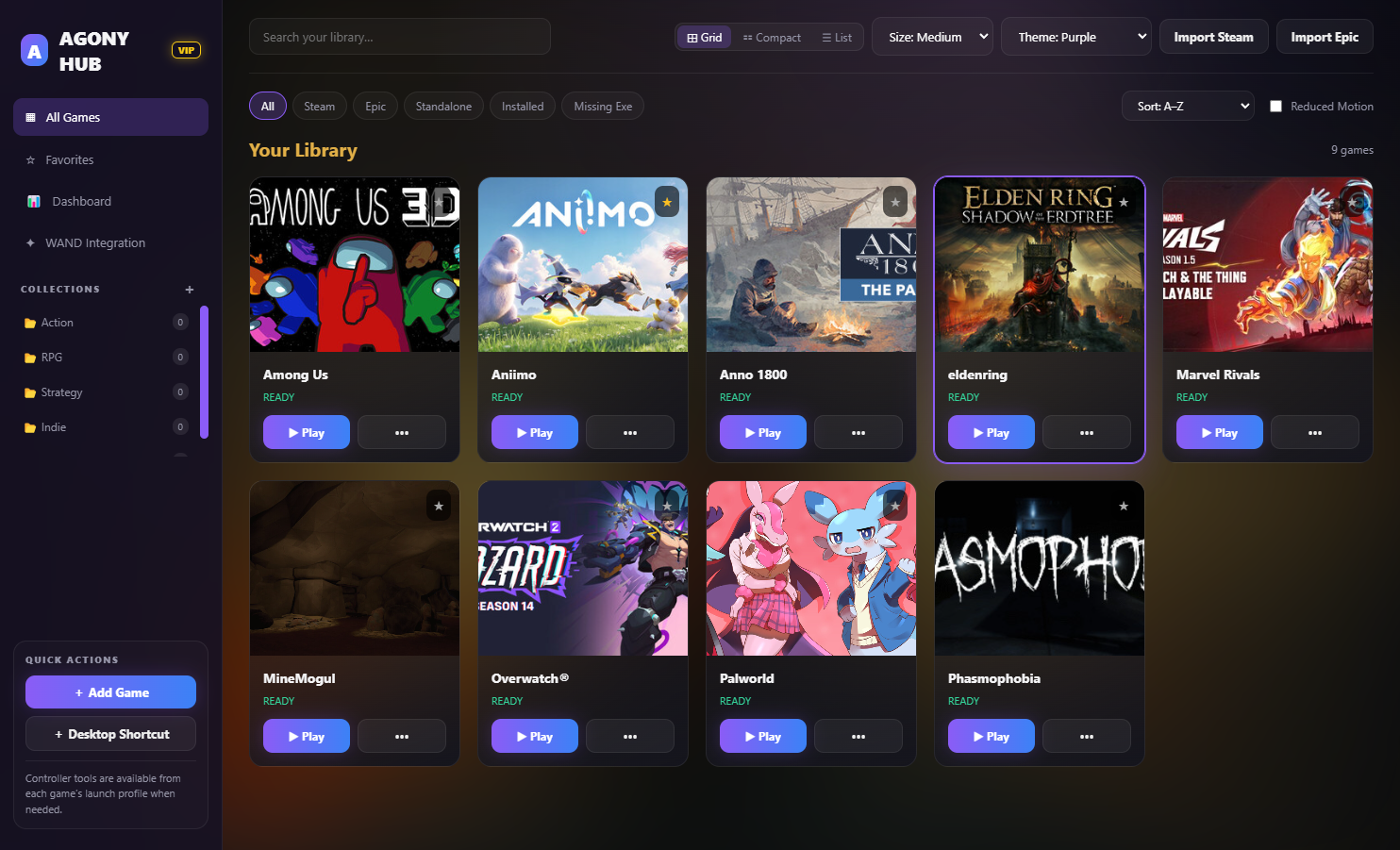
AGONY Hub v1.0.0 Main Desktop Application Interface
Figure 1.2: AGONY Hub v1.0.0 main interface with topbar navigation, search, and unified library grid.
Getting Started / Accounts & Licensing

Understanding Account Access, Offline Leases & Free vs. Premium

AGONY Hub uses a cryptographic licensing architecture combining Ed25519 digital signatures, 72-hour offline validity leases, and Windows DPAPI local encryption.

1. Account Registration & Instant Free Tier:

When you create an account on the website or in the desktop Welcome Modal, new accounts receive instant approval (status: 'approved') and are immediately provisioned with a Free tier license.

2. 72-Hour Offline Cryptographic Leases:

During login or license refresh, the Cloudflare Edge server issues an Ed25519 digitally signed lease valid for 72 hours, encrypted via Windows DPAPI to %APPDATA%\AGONY Hub\license.dat. You can launch your games offline for up to 3 days without internet access.

3. Free vs. Premium Feature Comparison:

Feature Capability Free Tier Premium Tier ($4.99/mo)
Multi-Platform Game Launching
(Steam, Epic, Xbox, Standalone)
✓ Unlimited ✓ Unlimited
Native Spotify Audio Controls
(Play, pause, skip, WASAPI volume/mute)
✓ Zero keys needed ✓ Zero keys needed
72-Hour Offline Leases ✓ Included ✓ Included
Device Slot Limit 1 PC 2 Active PCs
Theme & Appearance Library Obsidian Void (Default) ✓ 8 Presets + Online Catalog
Custom Accent Colors & Theme Export Preset only ✓ Full custom hex picker & export
Atmosphere Mode (Rain & Snow) Disabled ✓ 30 FPS GPU-accelerated engine
Spotify Mini-Player Expansion Basic topbar playback ✓ Sidebar player & centered art
Gaming Analytics Dashboard Restricted ✓ Playtime totals & platform charts
WAND Theme Script Generation Restricted ✓ Script preview & export

4. Account Status & Suspension Enforcement:

The topbar badge displays your authoritative account status: FREE, PREMIUM, or OWNER. If an account is suspended:

  • Server sessions are revoked and the local offline lease is immediately invalidated.
  • Core launcher operations (launch-game, launch-wand) are fail-closed and return ACCOUNT_SUSPENDED.
  • The desktop displays the red shield Account Suspended lock screen with a Sign In with Another Account button.
  • Data Safety Guarantee: Suspending an account never deletes or alters your installed games in %APPDATA%\AGONY Hub\library.json.
Getting Started / Settings & Preferences

Finding Settings and Customizing the Experience

Click Settings (#nav-settings) in the topbar to configure your preferences.

Core Settings Sections:

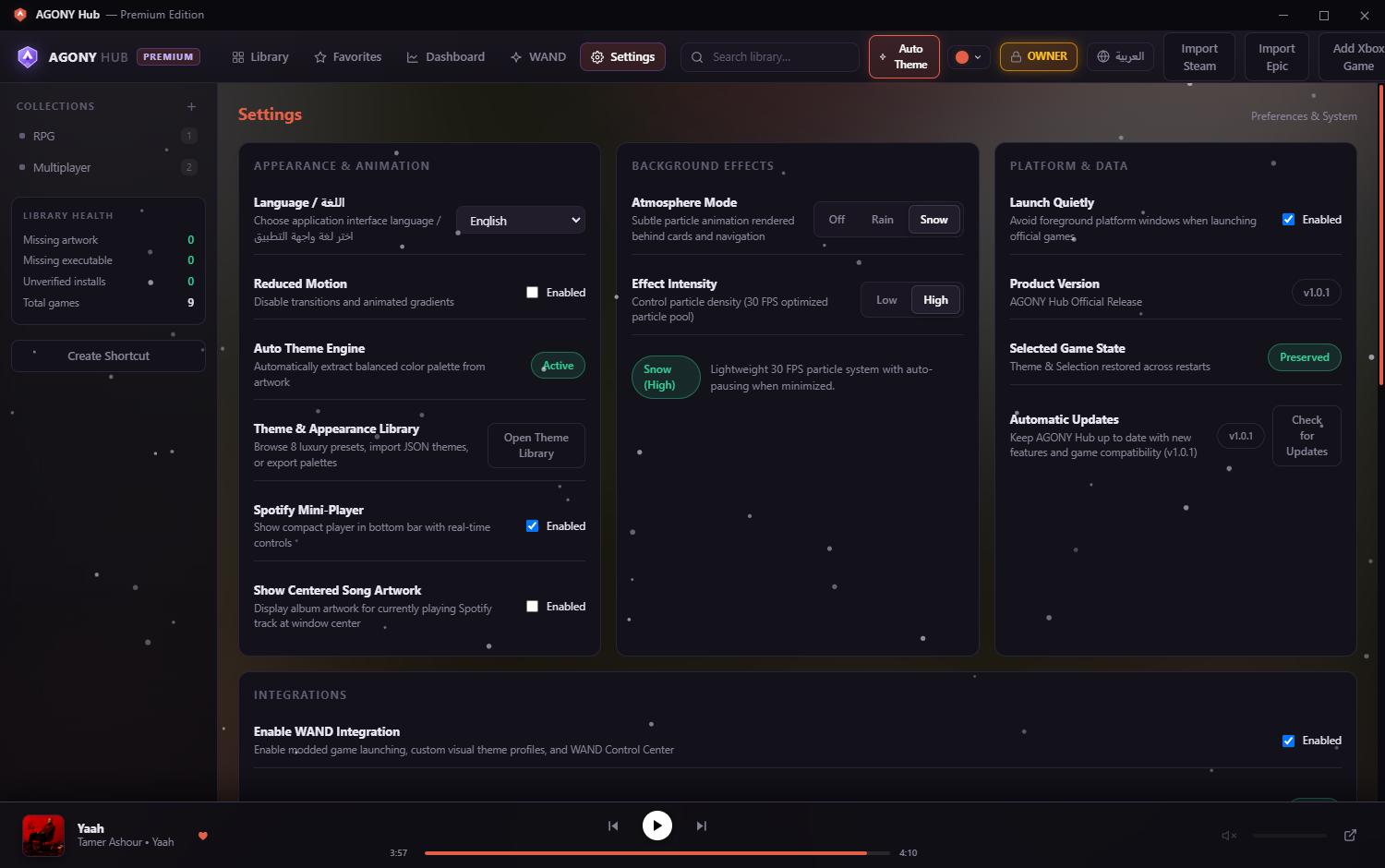
  • Appearance & Animation: Interface language selector (English / العربية), Reduced Motion toggle, Auto Theme Engine indicator, and Open Theme Library.
  • Background Effects: Atmosphere Mode selector (Off, Rain, Snow) and Effect Intensity (Low, High).
  • Platform & Data: Launch Quietly toggle (avoids foreground platform windows), Product Version indicator (v1.0.0), and Check for Updates.
  • Integrations: Enable WAND Integration toggle, availability diagnostics, and WAND Control Center actions.
  • Spotify Media Integration: Local SMTC & WASAPI status, Open Spotify, Check Status, and optional Custom Connection… dialog.
  • Online Artwork Provider (SteamGridDB): Optional API key configuration for community cover artwork.
🎮 Game Library

Game Library / Importing Steam & Epic

Importing Games from Steam and Epic Games

AGONY Hub integrates directly with official local launcher manifests, ensuring instant synchronization without downloading duplicate binaries.

1. Importing Steam Games:

Click Import Steam (#import-steam) in the topbar:

  1. AGONY Hub resolves the Steam install path from the Windows registry (HKCU\Software\Valve\Steam\SteamPath).
  2. Parses steamapps/libraryfolders.vdf to discover secondary library folders across all mounted drives.
  3. Scans appmanifest_<id>.acf files to verify installation states, numeric App IDs, and executable paths.
  4. Launches via the official Steam URI protocol (steam://rungameid/<AppID>) or Steam client launch with arguments.

2. Importing Epic Games:

Click Import Epic (#import-epic) in the topbar:

  1. Scans official manifest records in %PROGRAMDATA%\Epic\EpicGamesLauncher\Data\Manifests\*.item.
  2. Extracts canonical AppName, DisplayName, InstallLocation, and LaunchExecutable.
  3. Launches using the documented Epic Games Launcher protocol:
    com.epicgames.launcher://apps/<AppName>?action=launch&silent=true
Game Library / Xbox & Standalone

Adding Xbox Games & Adding Games Manually

AGONY Hub supports Microsoft Store / Xbox Game Pass titles and DRM-free standalone PC executables.

1. Adding Xbox & Windows Apps:

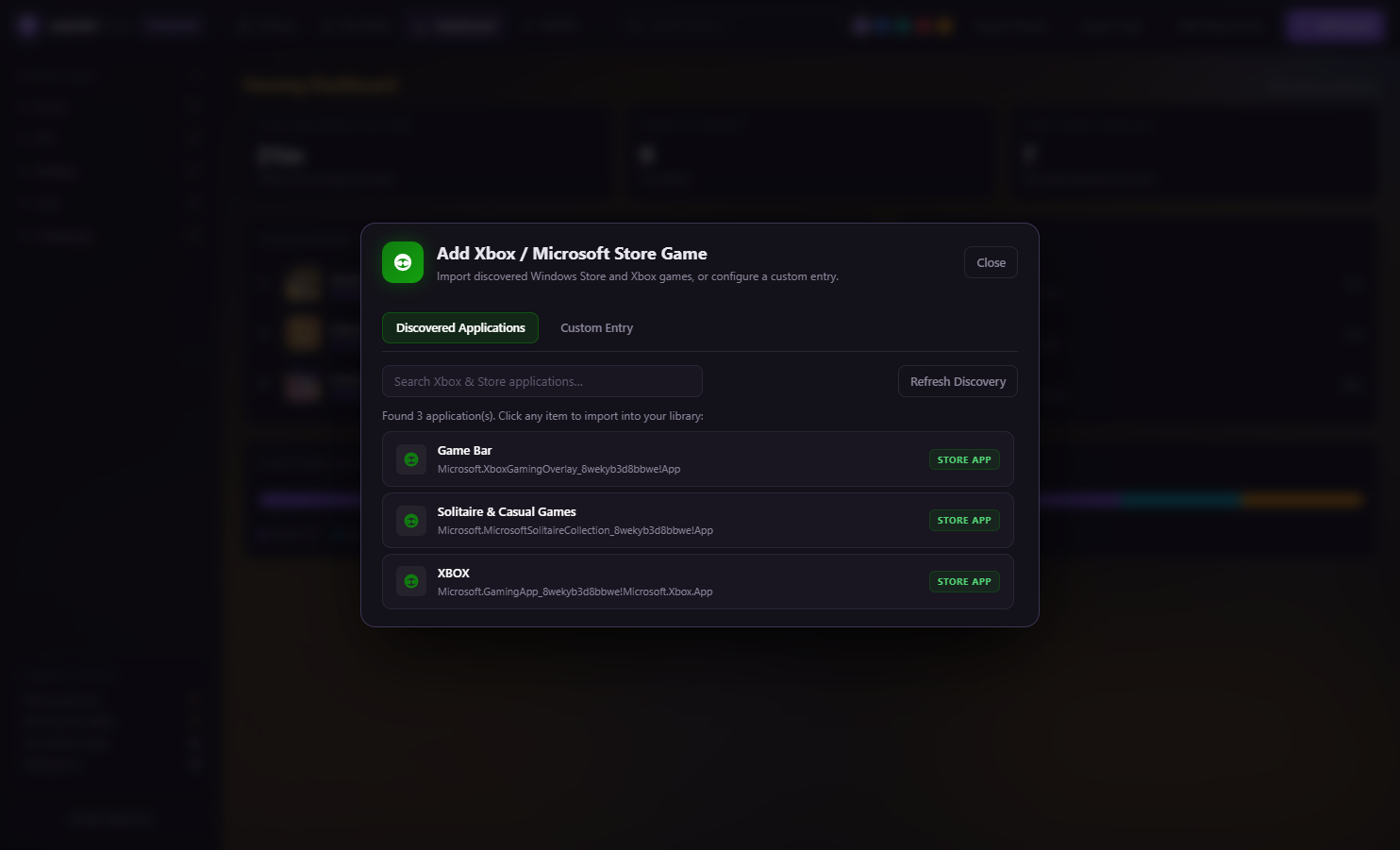
Click Add Xbox Game (#add-xbox) in the topbar to open the Xbox modal (#xbox-modal):

  • Discovered Xbox Games Tab: Scans %LOCALAPPDATA%\Packages for installed UWP applications and resolves Application User Model IDs (AUMIDs). Click Add next to any discovered title to add it to your library. AGONY Hub launches it via shell:AppsFolder\<AUMID>.
  • Custom Windows App Tab: For titles installed in custom directories (e.g. C:\XboxGames), enter the Title, Target Folder / EXE, and Launch Type (UWP, Win32, or Gameloop).
AGONY Hub • Discovered Xbox Titles Modal UWP AUMID Execution
Discovered Xbox Titles in AGONY Hub
Figure 2.1: Xbox & Windows App discovery modal with 1-click addition.

2. Adding Standalone Games Manually:

Click + Add Game (#add) in the topbar:

  1. Browse to any Windows game binary (.exe) on your PC and select it.
  2. AGONY Hub extracts product information, title metadata, and configures the working directory.
Game Library / Launch Methods

Understanding Supported Launch Methods & Options

AGONY Hub respects official launcher protocols and supports two primary execution modes:

1. Normal Launch Mode:

The default mode for all games. Starts titles using official platform protocols (steam://, com.epicgames.launcher://, shell:AppsFolder\) or direct Win32 process spawning for standalone binaries, ensuring game updates, cloud saves, and achievements remain synchronized.

2. WAND Launch Mode (Optional):

Available when WAND Integration is enabled. Routes game startup through WAND / WeMod to attach modded trainers and apply customized visual theme profiles.

3. Launch Options & Profiles:

In the Game Details modal (#game-detail-modal), click Options to configure:

  • Custom Arguments: Pass command-line parameters (e.g. -novid -dx11) to the executable.
  • Administrator Elevation: Automatically triggers RunAsAdmin if a game binary requires elevated system permissions.
  • Launch Mode Toggle: Switch between Normal and WAND mode per game.
Game Library / Library Organization

Library Health, Artwork & Game Organization

AGONY Hub gives you fine-grained control over artwork, card density, custom collections, and library health diagnostics.

1. Library Health Telemetry Panel:

Located in the left sidebar, the Library health panel displays real-time counters:

  • Missing artwork: Number of titles without portrait covers.
  • Missing executable: Number of titles whose executable path is currently inaccessible on disk.
  • Unverified installs: Games requiring path or metadata validation.
  • Total games: Total orchestrated game count.

2. Artwork Assignment:

In the Game Details modal:

  • Click Cover Art (#detail-cover-local) to select a local portrait image (recommended: 600x900).
  • Click Background Art (#detail-bg-local) to select a wide 16:9 ambient backdrop image.
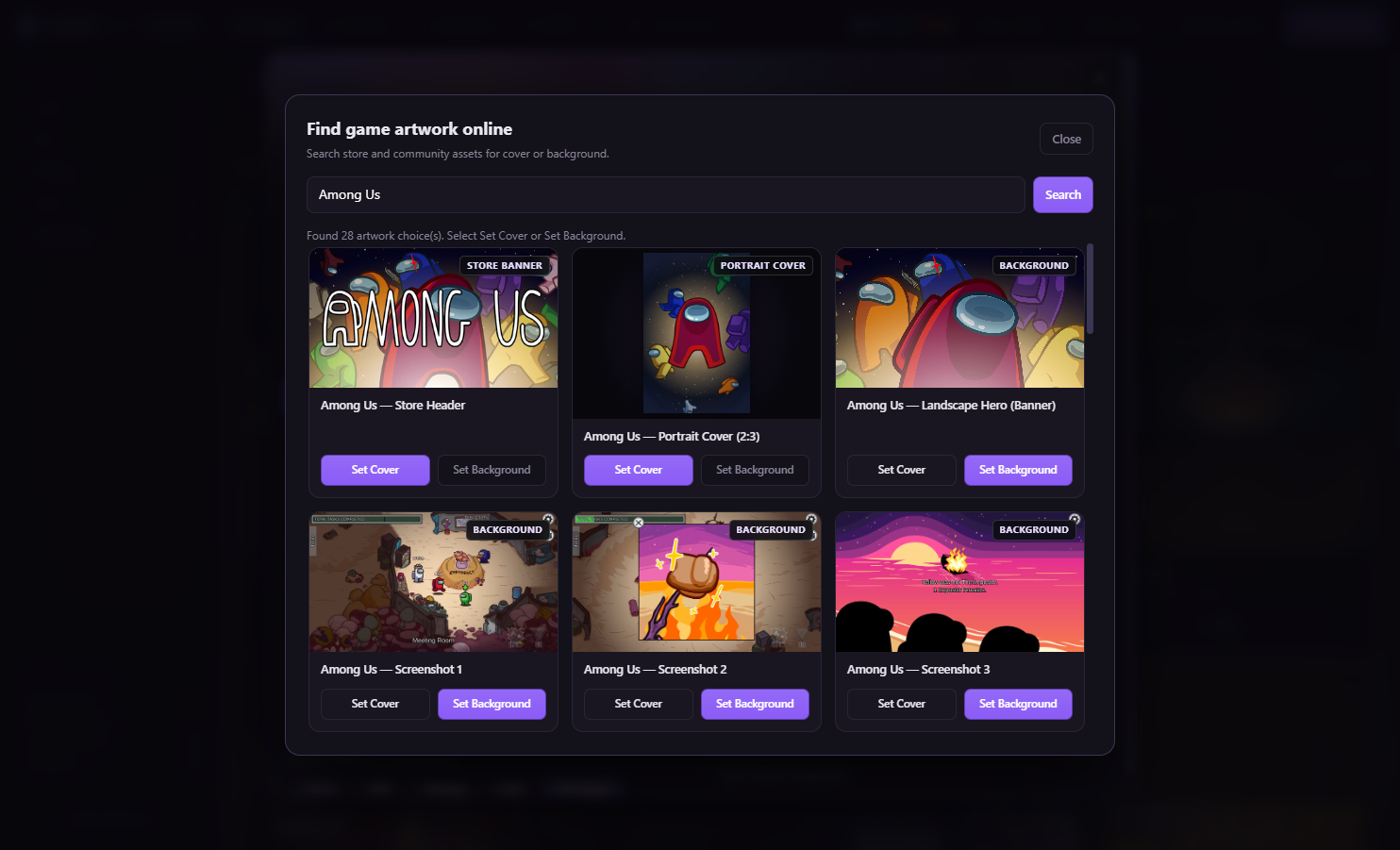
  • Click Search Online (#detail-artwork) to search Steam Store CDN (zero keys needed) or SteamGridDB (if API key is configured).
AGONY Hub • Online Artwork Search Dialog Steam Store • SteamGridDB
Online Artwork Search Dialog in AGONY Hub
Figure 2.2: Online artwork search dialog with category tabs and 1-click apply.

3. Sorting, Filters & View Modes:

  • View Modes: Grid, Compact, and List view (#view-grid, #view-compact, #view-list).
  • Card Density / Size: Small, Medium, Large dropdown (#card-size).
  • Sorting: A–Z, Z–A, Most played, Recently played, Recently added, and Source platform.
  • Collections: Create custom collections (#btn-new-collection) in the sidebar to organize games by genre or series.

🎨 Themes & Customization

Themes & Appearance / Accent Colors

Changing the Accent Color & 7 Luxury Presets

AGONY Hub allows you to personalize your workspace using preset luxury color points or any custom hex accent.

1. Preset Accents:

Click the accent color dot (#theme-color-btn) in the topbar to open the Palette Popover. Choose from 7 built-in accents:

  • Purple (Default): #8b5cf6 • Classic AGONY Obsidian Violet
  • Blue: #3b82f6 • Royal Cobalt
  • Teal: #14b8a6 • Nordic Cyan
  • Red: #ef4444 • Crimson Eclipse
  • Amber: #f59e0b • Champagne Gold
  • Emerald: #10b981 • Sovereign Green
  • Cyberpunk: #06b6d4 • High-Tech Cyan

2. Custom Accent Color Picker (Premium):

In the popover, click the color swatch next to Custom Accent (#theme-custom-picker) to open the Windows native color picker and select any 24-bit hex value.

Themes & Appearance / Auto Theme Engine

The Auto Theme Engine: Artwork-Driven Palettes

When Auto Theme (#theme-auto-toggle) is active, AGONY Hub harmonizes the entire desktop atmosphere with the game currently in focus.

1. Artwork Color Quantization:

When you click a game card in your library, AGONY Hub's color quantization engine analyzes the game's high-resolution cover artwork. It extracts the primary vibrant hue, generates balanced secondary accents, and computes high-contrast surface glows.

2. The Click-to-Commit Invariant:

Deliberate Selection Only: Palette extraction triggers strictly on deliberate card selection (clicks). Moving your mouse over cards or cycling with arrow keys will never cause jarring theme jumps.

3. Persisting Selected Game State:

In Settings → Platform & Data, the Selected Game State shows Preserved. When you close AGONY Hub, your active game selection and its extracted palette are stored in %APPDATA%\AGONY Hub\settings.json and restored automatically on next launch.

Themes & Appearance / Atmosphere Mode

Atmosphere Mode: Rain, Snow & 30 FPS Optimization

AGONY Hub features an ambient background particle engine that renders cinematic rain and snow behind library cards.

1. Configuring Atmosphere (Settings → Background Effects):

  • Off (#bg-effect-off): Completely disables particle canvas rendering.
  • Rain (#bg-effect-rain): Renders angled, translucent streaks falling smoothly across the obsidian backdrop.
  • Snow (#bg-effect-snow): Renders floating, drifting snowflakes with subtle horizontal sway.
  • Intensity: Toggle between Low (subtle density) and High (cinematic density).

2. Performance Guard & Auto-Pausing:

The Atmosphere engine is capped at 30 FPS (<1% GPU overhead). Whenever AGONY Hub is minimized, hidden behind another window, or a game is launched into fullscreen mode, the engine automatically pauses to guarantee zero interference with game performance.

Themes & Appearance / Accessibility & Reset

Reduced Motion Settings & Restoring Default Appearance

AGONY Hub respects accessibility preferences and provides a 1-click restore path for appearance settings.

1. Reduced Motion:

In Settings → Appearance & Animation, check Reduced Motion (#reduced-motion-toggle). This immediately:

  • Disables animated CSS gradients and button hover transforms.
  • Pauses all Atmosphere background particles.
  • Sets modal and drawer transition times to 0 ms.

2. Restoring Default Appearance:

To reset custom theme colors back to factory defaults:

  1. Open Settings and click Open Theme Library (#settings-open-theme-library).
  2. Click Reset to Default (#btn-reset-theme-default).
  3. AGONY Hub restores the default Obsidian Void palette (deep charcoal background, electric violet accents, and default typography).

🎵 Spotify & Audio Integration

Spotify & Audio / Native Media Controls

Native Spotify Controls: Zero API Keys Required

AGONY Hub does not require Spotify developer accounts, OAuth callback servers, or personal API tokens for everyday media controls. It connects directly to the operating system's native media session.

How Native Controls Work:

  • Windows System Media Transport Controls (SMTC): AGONY Hub hooks into Windows SMTC to receive real-time track metadata (Song Title, Artist, Album) and dispatch Play, Pause, Next Track, and Previous Track commands.
  • Windows Core Audio (WASAPI): Volume adjustments and mute toggles communicate with the Windows Core Audio engine to control Spotify's per-process audio session directly.
  • Universal Spotify Support: Works out-of-the-box for both Spotify Free and Spotify Premium without needing any API keys.

Checking Spotify in Settings:

Open Settings → Spotify Media Integration (Per-PC Configuration):

  • Local SMTC & WASAPI badge verifies native session readiness.
  • Click Open Spotify (#settings-spotify-launch-btn) to start the desktop app.
  • Click Check Status (#settings-spotify-refresh-btn) to re-query the active media session.
AGONY Hub Settings • Spotify Media Integration Card Windows DPAPI • SMTC
Settings view showing Spotify Media Integration card
Figure 4.1: Settings view showing verified Spotify Media Integration card and native controls.
Spotify & Audio / Custom Connection

The Optional "Custom Connection…" Dialog

In Settings → Spotify Media Integration, clicking Custom Connection… (#settings-spotify-config-btn) opens the Spotify Per-User Connection dialog (#spotify-config-modal).

Verified Dialog Fields (What Actually Exists):

Inspecting the actual application source code confirms only two optional fields exist:

  • Custom Spotify Client ID (Optional) (#spotify-client-id-input): Accepts up to an 80-character string (e.g. your personal 32-character Spotify Developer App ID).
  • Account Display Name or Tag (Optional) (#spotify-username-input): A local display tag for this PC profile.

DPAPI Storage & Disconnect:

Clicking Save to DPAPI encrypts the input with your Windows user account SID and writes it to %APPDATA%\AGONY Hub\spotify-auth.dat. Click Clear Credentials or Disconnect / Reset (#settings-spotify-disconnect-btn) to delete the credential file.

Critical Implementation Limitations:
  • There is no Client Secret field, no redirect URI, and no OAuth code prompt.
  • Entering a Client ID does not mute Spotify Free ads or convert Free accounts to Premium.
  • Normal playback and volume controls function fully without touching this dialog.

✨ WAND Integration

WAND Integration / Setup & Theme Scripts

WAND Integration: Setup, Verification & Theme Scripts

AGONY Hub bridges with WAND (and WeMod) to orchestrate modded game launches and export matching visual themes.

1. Enabling WAND in Settings:

In Settings → Integrations, check Enable WAND Integration (#toggle-wand-enabled). This unlocks:

  • The WAND tab in the topbar navigation.
  • The WAND launch mode option inside Game Details modals.
  • The Open WAND Control Center button.

2. Inspecting Availability & Locating Executables:

The WAND Availability & Diagnostics row reports one of four states:

  • Ready: Wand.exe or WeMod.exe verified on disk in standard paths or custom path.
  • Not detected: Not found in standard directories (%LOCALAPPDATA%\Wand, %LOCALAPPDATA%\WeMod, Program Files). Click Locate WAND… (#settings-wand-locate-btn) to manually browse to the executable.
  • Disabled: Toggle is off in Settings.
  • Error: Path exists but is inaccessible.
AGONY Hub • WAND Control Center Dialog Modded Profiles • Visual Scripts
WAND Control Center Dialog in AGONY Hub
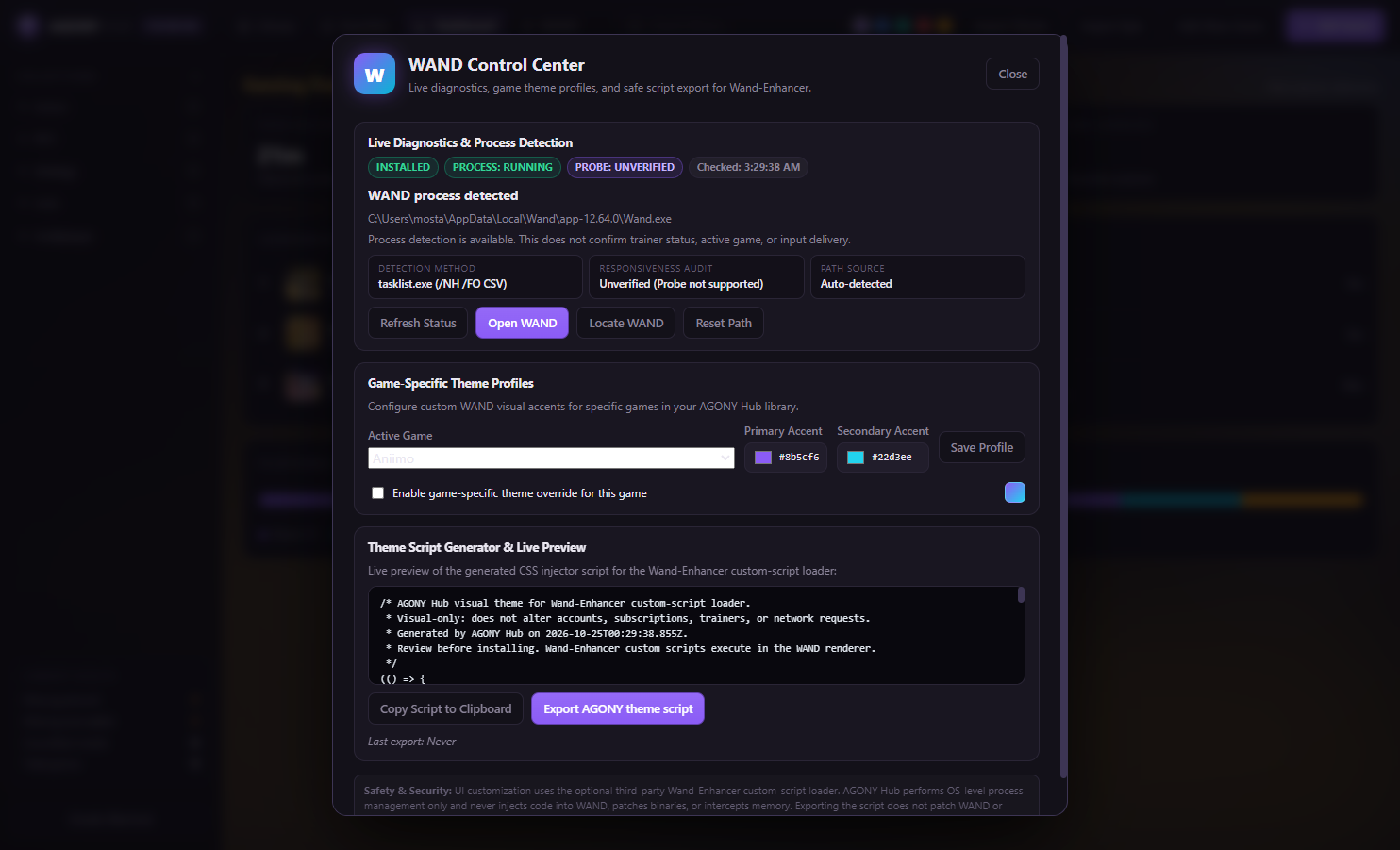
Figure 5.1: WAND Control Center dialog showing profile picker, dual accents, and script preview.

3. Visual-Only Theme Scripts:

In the WAND Control Center (#wand-modal), AGONY Hub provides a visual script generator for the Wand-Enhancer script loader:

  • Configures primary (#wand-accent-1) and secondary (#wand-accent-2) theme colors.
  • Click Export Theme to write agony-wand-theme.js.
  • Strict Limitation: Generated scripts are visual CSS enhancements only. They do not alter game trainers, accounts, subscriptions, or network requests.

🔄 Updates & Installation

Updates & Install / Automatic Updates

Automatic Updates, Versioning & Active Session Guards

AGONY Hub v1.0.0 features a safe, transactional updater that guards active gameplay sessions.

1. Verifying Product Version:

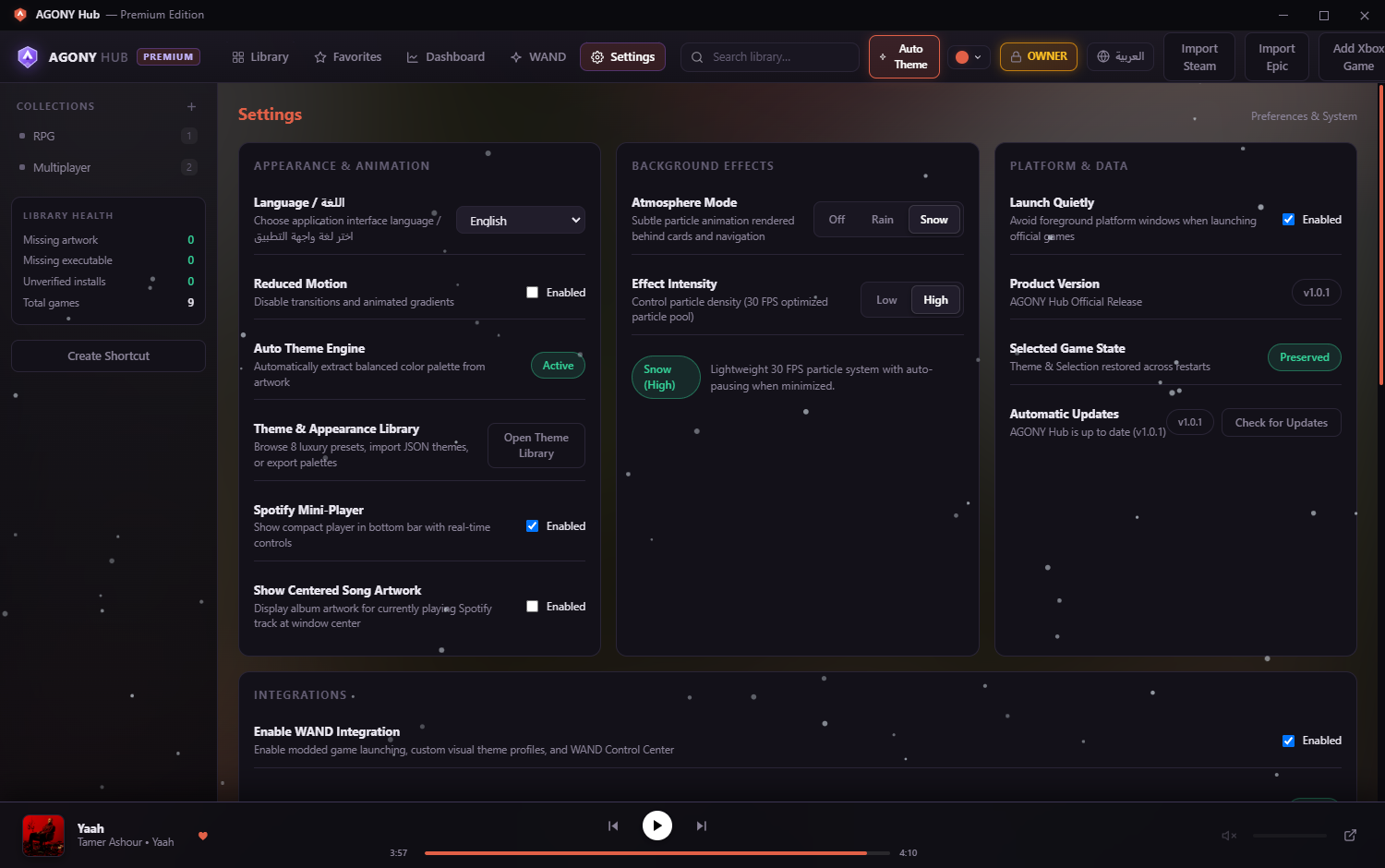
Open Settings → Platform & Data. The Product Version displays v1.0.0 (#settings-product-version).

2. Checking for Updates:

Click Check for Updates (#btn-check-updates). If you are on the latest release, it confirms "AGONY Hub is up to date (v1.0.0)".

3. Active Session Guard:

If an update is downloaded while you are playing, AGONY Hub blocks installation while active game sessions are running. Once you finish playing and exit your game, the Restart & Update (#btn-install-update) button unlocks safely.

AGONY Hub Settings • Product Version & Automatic Updates v1.0.0 Stable Feed
Settings Platform & Data section displaying Product Version v1.0.0
Figure 6.1: Verified Settings Platform & Data section displaying official release v1.0.0.
Updates & Install / Safe Recovery & Logs

Safe Recovery, Diagnostic Logs & Data Preservation

AGONY Hub stores user configuration cleanly in your personal Windows roaming application directory:
%APPDATA%\AGONY Hub

1. Core Files Overview:

  • library.json: Contains all your imported game titles, paths, playtime, and launch configs.
  • settings.json: Stores UI preferences, card density, themes, and toggles.
  • license.dat: DPAPI-encrypted 72-hour cryptographic lease.
  • app.log: Redacted diagnostic operational log.
CRITICAL DATA PRESERVATION RULE:
Never delete library.json or license.dat as a routine troubleshooting step! Doing so would discard your verified playtime statistics and offline authorizations unnecessarily.

2. How to Reset Settings Safely:

  1. Close AGONY Hub.
  2. Press Win + R, type %APPDATA%\AGONY Hub, and press Enter.
  3. Delete only settings.json. Your games in library.json and licensing leases remain completely safe.
  4. Relaunch AGONY Hub. It will regenerate clean default settings while keeping all your games intact.

3. Diagnostic Logs (`app.log`):

AGONY Hub writes operational telemetry to %APPDATA%\AGONY Hub\app.log (rotating to app.log.old when exceeding 512 KB). The built-in logger automatically redacts user profile paths (C:\Users\<username> → %USERPROFILE%) and masks API tokens.

🔧 Troubleshooting

Troubleshooting / Game Not Appearing

A Game Does Not Appear in the Library

⚠ Symptom
You clicked Import Steam, Import Epic, or Add Xbox Game, but a specific installed game does not show up in the library grid.
🔍 Likely Causes
1. The game is stored on a secondary drive that was not mounted when scanning.
2. The game was recently downloaded and its manifest file has not yet been flushed by Steam/Epic.
3. A search filter or source pill (e.g. Steam or Installed) is currently active, hiding the game.
✅ Safe Steps to Try
  1. Clear Filters: Click the All sources pill and clear the search bar.
  2. Verify Secondary Drives: For Steam, ensure all storage drives are online, then launch Steam once so it updates libraryfolders.vdf. Return to AGONY Hub and click Import Steam again.
  3. Add Manually: If the title is standalone or from an unsupported launcher, click + Add Game and select its executable directly.
💬 When to Contact Support
If a game has a verified manifest in steamapps or Epic ProgramData but still fails to import after restarting AGONY Hub.
Troubleshooting / Launch Failure

A Game Fails to Launch

⚠ Symptom
Clicking Play shows an error toast or nothing happens.
🔍 Likely Causes
1. STEAM_CLIENT_UNAVAILABLE: Steam desktop client is closed or not running.
2. STEAM_METADATA_MISSING: Missing Steam AppID in manifest; needs re-import or Steam file verification.
3. EPIC_METADATA_MISSING: Missing Epic AppName/Catalog metadata; needs re-import or Epic Launcher start.
4. EXE_MISSING: Game executable path is missing, moved, or drive unmounted.
5. ACCOUNT_SUSPENDED: Account status is locked or revoked by an administrator.
6. Antivirus / Windows Defender quarantined or blocked the game executable.
✅ Safe Steps to Try
  1. Check Official Client: For Steam games, start Steam and ensure you are logged into your account.
  2. Path Repair: In Game Details, click Repair Executable Path to verify the binary exists.
  3. Check RunAsAdmin: In Game Details → Options, enable Administrator elevation if the game requires elevated privileges.
💬 When to Contact Support
If the game launches fine directly from Steam/Epic but consistently throws an unhandled diagnostic error inside AGONY Hub. Check %APPDATA%\AGONY Hub\app.log.
Troubleshooting / Artwork & Path Repair

Missing Artwork or Incorrect Executable Paths

⚠ Symptom
A game card shows a generic placeholder, or displays a Missing Executable badge.
🔍 Likely Causes
1. Network timeout downloading cover art during initial import.
2. Game was patched or updated to a new executable name (e.g. Game_Shipping.exe).
3. External SSD / USB storage drive letter changed.
✅ Safe Steps to Try
  1. Fix Executable Path: Double-click the game to open Details and click Repair Executable Path. Select the updated binary. All stats remain intact.
  2. Re-Fetch Artwork: In Details, click Artwork → Search Online. Select a high-resolution portrait cover from the search results.
💬 When to Contact Support
If local artwork files are selected but fail to render due to an unsupported image format. (Supported formats: PNG, JPG, JPEG, WEBP).
Troubleshooting / Settings Not Persisting

Settings or Themes Not Persisting Across Restarts

⚠ Symptom
You changed your theme, card size, or language, but restarting the app resets it to default.
🔍 Likely Causes
1. %APPDATA%\AGONY Hub\settings.json is marked read-only or blocked by a third-party backup tool.
2. Free tier account attempting to save Premium settings (custom themes and atmosphere are sanitized to Free defaults on Free accounts).
3. AGONY Hub was terminated abruptly via Taskkill before an atomic file flush completed.
✅ Safe Steps to Try
  1. Check File Permissions: Browse to %APPDATA%\AGONY Hub in Windows Explorer. Right-click settings.json, select Properties, and ensure Read-only is unchecked.
  2. Safe Reinitialization: If settings.json is corrupt, delete only settings.json. Do NOT touch library.json. Restart AGONY Hub to regenerate a fresh settings file.
💬 When to Contact Support
If settings still fail to persist after deleting settings.json on an approved Premium account.
Troubleshooting / Spotify Issues

Spotify Integration Issues (Not Responding / Inactive Session)

⚠ Symptom
The sidebar Spotify player shows "Inactive Session" or media controls do not respond.
🔍 Likely Causes
1. Spotify Desktop is not running.
2. Windows has not initialized the SMTC media pipeline (happens when Spotify is idle and has not played any audio since boot).
3. Using the Spotify Web Player in a browser instead of the official Spotify Windows Desktop client.
✅ Safe Steps to Try
  1. Play Any Song: Start playing any audio track in Spotify Desktop. Windows SMTC only registers an active session once audio begins streaming.
  2. Refresh Status: In AGONY Hub Settings → Spotify Media Integration, click Check Status (#settings-spotify-refresh-btn).
  3. Reset Credentials: If custom credentials were saved in DPAPI, click Disconnect / Reset (#settings-spotify-disconnect-btn). Remember that basic controls do not require any credentials.
💬 When to Contact Support
If Spotify Desktop is playing audio and Windows Game Bar shows SMTC media controls, but AGONY Hub fails to bind to the session.
Troubleshooting / WAND Issues

WAND Integration Issues (Not Detected / Bridge Error)

⚠ Symptom
WAND availability displays "Not detected" or modded launches fail to hand off.
🔍 Likely Causes
1. WAND / WeMod is installed to a non-standard custom directory.
2. WAND background process is blocked by Windows UAC.
3. Integration toggle is disabled in Settings.
✅ Safe Steps to Try
  1. Locate Executable: In Settings → Integrations, click Locate WAND… (#settings-wand-locate-btn) and browse directly to your Wand.exe or WeMod.exe.
  2. Revalidate Availability: Click Revalidate Availability (#settings-wand-refresh-btn) to verify the status pill updates to Ready.
💬 When to Contact Support
If the executable path is verified on disk but the bridge reports an inaccessible filesystem error.
Troubleshooting / Installation & Updates

Installation and Automatic Update Failures

⚠ Symptom
The installer shows an NSIS integrity error, or the automatic updater fails to download.
🔍 Likely Causes
1. Incomplete browser download due to an interrupted internet connection.
2. A previous instance of AGONY Hub.exe is still running in the background.
3. Corporate proxy or firewall blocking Cloudflare Workers edge downloads.
✅ Safe Steps to Try
  1. Kill Running Processes: Press Ctrl + Shift + Esc to open Task Manager. If AGONY Hub.exe is running, right-click and choose End task before updating.
  2. Clean Re-download: Re-download AGONY Hub Setup 1.0.0.exe from the official website and verify that its size is exactly 93,818,896 bytes.
  3. Install Over Existing: Run the installer. It will automatically update the binary files in %LOCALAPPDATA%\Programs\AGONY Hub without touching your library data in AppData.
💬 When to Contact Support
If the verified installer repeatedly fails on a supported Windows 10/11 64-bit installation.

🔒 Security, Privacy & API Configuration

Security & API / Credentials Audit

Which Integrations Genuinely Require API Keys?

To avoid confusion, AGONY Hub maintains an explicit audit of required vs. zero-key integrations:

Integration API Key Required? Mechanism Documented
Steam Integration NO KEYS REQUIRED Local registry and appmanifest_*.acf inspection.
Epic Games Integration NO KEYS REQUIRED Local %PROGRAMDATA%\Epic\...\Manifests parsing.
Xbox & Windows Apps NO KEYS REQUIRED Windows UWP Application User Model ID (AUMID) shell launch.
Spotify Media Controls NO KEYS REQUIRED Windows SMTC & WASAPI Core Audio session.
WAND Integration NO KEYS REQUIRED Local executable bridge & CSS visual theme export.
SteamGridDB Artwork OPTIONAL API KEY Only required if searching community artwork on SteamGridDB. Steam CDN works with zero keys.
Security & API / SteamGridDB Setup

Configuring the Optional SteamGridDB API Key

By default, AGONY Hub downloads game cover art from the Steam Store CDN without any API key. If you wish to search SteamGridDB's community repository of custom portrait covers, wide banners, and logos, you can configure an optional SteamGridDB API key.

Step-by-Step Configuration:

  1. Obtain an API Key: Log into steamgriddb.com, navigate to your profile preferences → API, and generate an API key (e.g. sgdb_your_key_here).
  2. Open Settings: In AGONY Hub, click Settings and scroll to Online Artwork Provider (SteamGridDB).
  3. Enter & Test: Paste your key into the password field (#steamgriddb-key-input). Click Test Connection (#btn-steamgriddb-test).
  4. Save Key: Once verified, click Save Key (#btn-steamgriddb-save).
Credential Storage: Your SteamGridDB API key is encrypted using Windows DPAPI and stored locally on your machine. It is never transmitted to AGONY Hub servers.
Security & API / Privacy & Safety

Privacy, DPAPI Encryption & Safe Issue Reporting

AGONY Hub is engineered around strict local data ownership and zero telemetry tracking.

1. Windows DPAPI Encryption:

All sensitive local desktop credentials (including license.dat, spotify-auth.dat, and your SteamGridDB key) are protected using the Windows Data Protection API (DPAPI). They are tied directly to your Windows User SID and cannot be decrypted by unauthorized users or copied to another machine.

Security Notice: Never Share Sensitive Files
Never upload or share your license.dat, spotify-auth.dat, or raw passwords with anyone. AGONY Hub support staff and developers will never ask for your private decryption tokens or account passwords.

2. Safe Issue Reporting Guidelines:

  • NEVER share passwords or tokens: AGONY Hub developers and support representatives will never ask you for passwords, session tokens, or private keys.
  • Built-in Log Redaction: When submitting an operational log from %APPDATA%\AGONY Hub\app.log, the logger automatically masks user profile directories and hexadecimal tokens.
  • Zero Telemetry & Zero Ads: AGONY Hub does not include tracking analytics, telemetry beacons, or advertising injectors.

No matching guides found

We couldn't find any guides matching your query. Try searching for a different keyword or browse by category.